Some Debug Tips Before You Start
Add another boot config
We highly recommend you to add another boot config for it.
So when you make a mistake, you can boot using another boot config.
(Re-compile images or flashing the entire system image takes a lot of time.)
And rename your test file before you copy into target folder.
On JetPack 7, you also can add overlay device tree file.
$ vi /boot/extlinux/extlinux.conf
LABEL primary
      MENU LABEL primary kernel
      LINUX /boot/Image
      INITRD /boot/initrd
      FDT /boot/<target>.dtb
      APPEND ${cbootargs} ...

+ LABEL TEST_KERNEL
+      MENU LABEL TEST kernel
+      LINUX /boot/Image_test
+      INITRD /boot/initrd
+      FDT /boot/<target>_test.dtb
+      OVERLAYS /boot/<your_test>.dtbo
+      APPEND ${cbootargs} ...
When booting to UEFI, follow the step to change boot device.
Or you can select the TEST_KERNEL boot config by typing '2' in console.
Select Boot Device
When you have multiple boot devices, you can choose which one you want to boot.
During UEFI, press ESC to enter setup menu.
Then enter Boot Manager, choose boot option.
For example: select NVMe
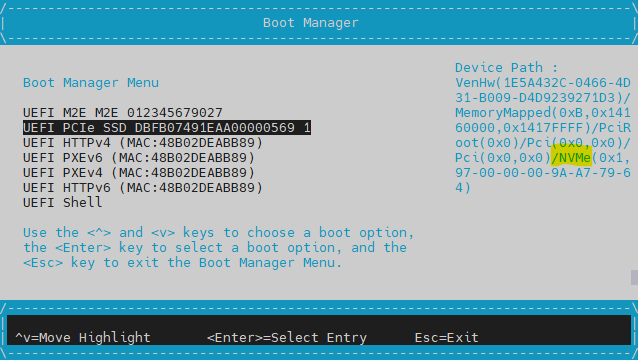
Change Boot order
When multiple bootable storage devices are present on the device, UEFI will select the first storage device for booting if no specific.
You can modify the boot order by following these steps:
- Press the ESC key when the UEFI prompt appears to enter the menu
- Sequentially select: Boot Maintenance Manager → Boot Options → Change Boot Order
- Use the +/- key to adjust the order
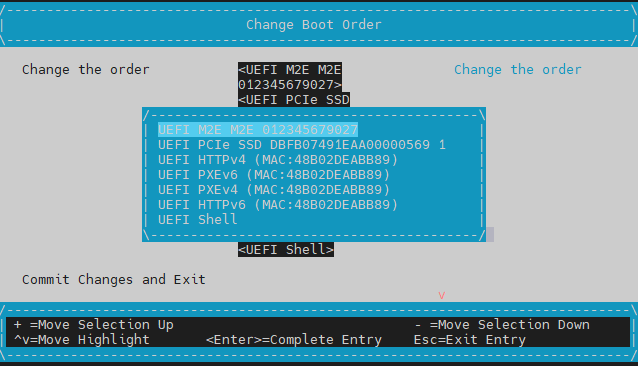
For example, there are two boot storage on device, NVMe and USB.
In default boot order, USB take precedence over NVMe.