Advantech AFE-R750 with JetPack 6.1
Instruction
TechNexion Embedded Vision Solutions provide embedded system developers access to high-performance, industrial-grade camera solutions to accelerate their time to market for embedded vision projects.
Supported Camera Modules
| Camera Series | Products |
|---|---|
| VLS-GM2 | VLS-GM2-AR0144 VLS-GM2-AR0145 VLS-GM2-AR0234 VLS-GM2-AR0235 VLS-GM2-AR0246 VLS-GM2-AR0521 VLS-GM2-AR0522 VLS-GM2-AR0544 VLS-GM2-AR0821 VLS-GM2-AR0822 VLS-GM2-AR0830 VLS-GM2-AR1335 VLS-GM2-AR2020 |
More Camera Products Details...
Supported NVIDIA Jetson Partner Platforms
Install TN Camera on NVIDIA Jetson Partner Platforms
Connect to NVIDIA Jetson Partner Platforms
VLS-GM2 cameras on Advantech AFE-R750
Connect VLS-GM2 cameras to the AFE-R750 GMSL ports.
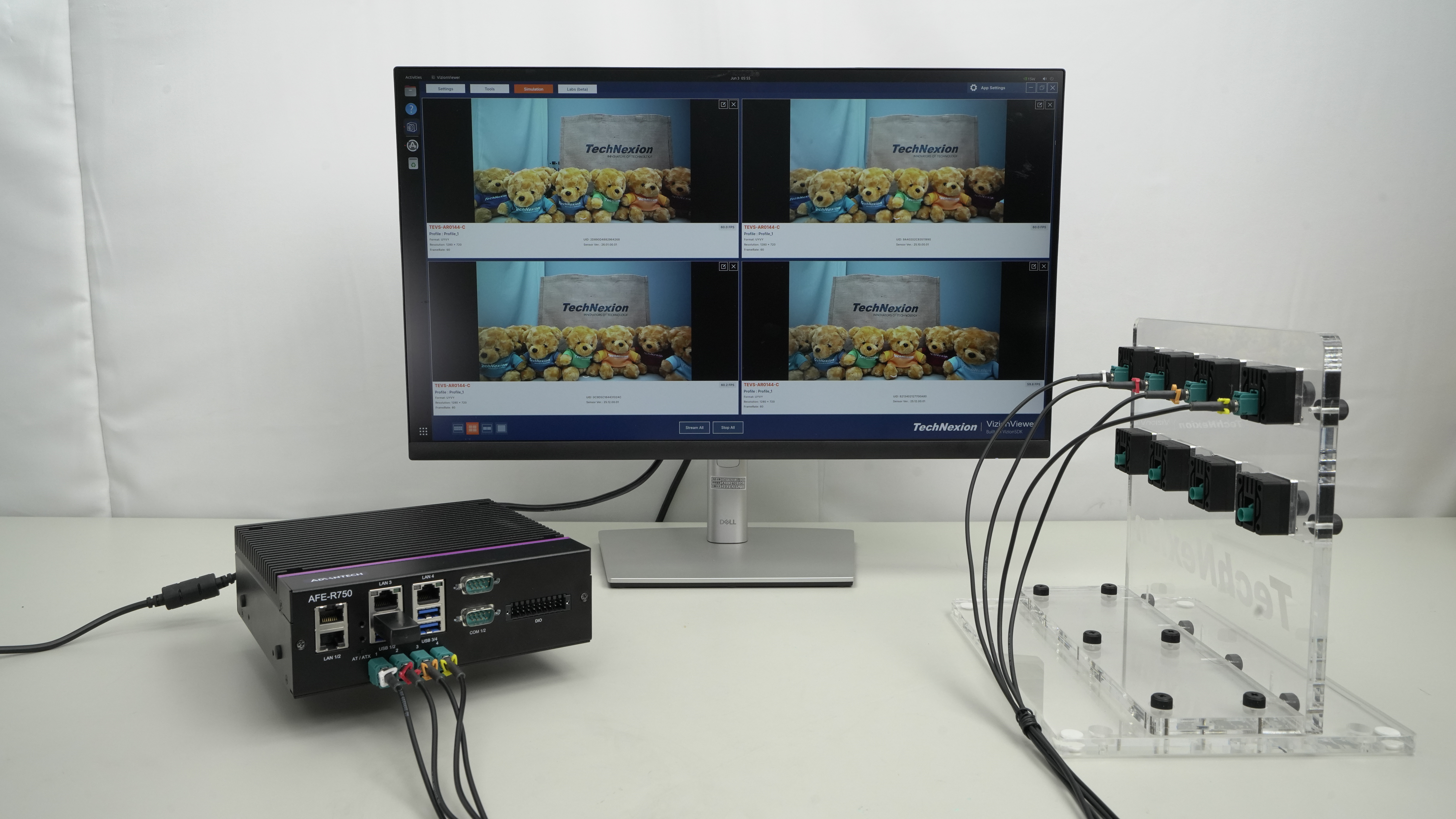
Follow the video tutorial below to learn how to connect VLS-GM2 cameras to AFE-R750.
Using TechNexion Pre-built modules
We recommend following the user manual from platform vendors to set up the system. After that, you can follow the below method to install TechNexion Cameras Driver.
-
Download pre-built modules.
$ wget https://download.technexion.com/demo_software/EVK/NVIDIA/AFE-R750/OrinNX/pre-built-modules/latest/JP61/tn_camera_modules_jp61.tar.gz -
Uncompress the modules.
$ tar -xf tn_camera_modules_jp61.tar.gz -
Run installation script.
$ cd tn_camera_modules_<built_time>/
$ ./tn_install.sh -
After you agree to continue the installation, select the camera PHY mode. The module will be installed to the system.
$ ./tn_install.sh
****** TechNexion Camera Driver Installation ******
This installs AFE-R750 Orin NX camera modules and DTBO overlays.
Back up the image before installing on a production system.
Do you want to continue?[Y/n] Y
Camera PHY mode [single/dual] (default: single): single
Selected camera PHY mode: single
Selected default extlinux label: afe-r750-camera
Selected default DTBO: tegra234-p3767-camera-afe-r750-vls-gm2-overlay.dtbo
Installed artifacts:
<sha256>  /lib/modules/5.15.148-tegra/updates/drivers/media/i2c/technexion/maxim-gmsl/max96712_tn.ko
<sha256>  /lib/modules/5.15.148-tegra/updates/drivers/media/i2c/technexion/maxim-gmsl/max96717.ko
<sha256>  /lib/modules/5.15.148-tegra/updates/drivers/media/i2c/technexion/tevs/tevs.ko
<sha256>  /boot/tegra234-p3767-camera-afe-r750-vls-gm2-overlay.dtbo
<sha256>  /boot/tegra234-p3767-camera-afe-r750-vls-gm2-fsync-overlay.dtbo
<sha256>  /boot/tegra234-p3767-camera-afe-r750-dual-phy-vls-gm2-overlay.dtbo
<sha256>  /boot/tegra234-p3767-camera-afe-r750-dual-phy-vls-gm2-fsync-overlay.dtbo
Extlinux camera entries:
DEFAULT afe-r750-camera
LABEL afe-r750-camera
      FDT /boot/dtb/kernel_tegra234-p3768-0000+p3767-0000-nv.dtb
      OVERLAYS /boot/tegra234-p3767-camera-afe-r750-vls-gm2-overlay.dtbo
LABEL afe-r750-camera-fsync
      FDT /boot/dtb/kernel_tegra234-p3768-0000+p3767-0000-nv.dtb
      OVERLAYS /boot/tegra234-p3767-camera-afe-r750-vls-gm2-fsync-overlay.dtbo
LABEL afe-r750-camera-dual-phy
      FDT /boot/dtb/kernel_tegra234-p3768-0000+p3767-0000-nv.dtb
      OVERLAYS /boot/tegra234-p3767-camera-afe-r750-dual-phy-vls-gm2-overlay.dtbo
LABEL afe-r750-camera-dual-phy-fsync
      FDT /boot/dtb/kernel_tegra234-p3768-0000+p3767-0000-nv.dtb
      OVERLAYS /boot/tegra234-p3767-camera-afe-r750-dual-phy-vls-gm2-fsync-overlay.dtbo
Finish Camera Driver Installation.
You should reboot the device to enable AFE-R750 cameras.
Do you want to reboot now?[Y/n] Y
Rebooting...
You should reboot the device after installation.
Bring up Camera
TechNexion VizionViewer
Gstreamer
If you successfully initialize the camera, you can follow the steps to open the camera.
-
Check the supported resolutions:
$ gst-device-monitor-1.0 Video/Source
Probing devices...

Device found:

        name  : vi-output, tevs 9-0039
        class : Video/Source
        caps  : video/x-raw, format=UYVY, width=640, height=480, framerate=60/1
                video/x-raw, format=UYVY, width=1280, height=720, framerate=60/1
                video/x-raw, format=UYVY, width=1280, height=800, framerate=60/1
                video/x-raw, format=NV16, width=640, height=480, framerate=60/1
                video/x-raw, format=NV16, width=1280, height=720, framerate=60/1
                video/x-raw, format=NV16, width=1280, height=800, framerate=60/1
        properties:
                object.path = v4l2:/dev/video0
                device.api = v4l2
                media.class = Video/Source
                api.v4l2.path = /dev/video0
                api.v4l2.cap.driver = tegra-video
                api.v4l2.cap.card = "vi-output\,\ tevs\ 9-0039"
                api.v4l2.cap.bus_info = platform:tegra-capture-vi:0

... -
Use the Gstreamer pipeline to launch a 1280x720 resolution camera (/dev/video0) via the CPU:
$ DISPLAY=:0 gst-launch-1.0 v4l2src device=/dev/video0 ! \
"video/x-raw, format=UYVY, width=1280, height=720" ! xvimagesink sync=false -
Use the Gstreamer pipeline to launch a 1280x720 resolution camera (/dev/video0) via the GPU:
$ DISPLAY=:0 gst-launch-1.0 nvv4l2camerasrc device=/dev/video0 ! \
"video/x-raw(memory:NVMM), format=UYVY, width=1280, height=720" ! \
nvvidconv ! nv3dsink sync=false
Troubleshooting
Cannot find cameras
If you cannot bring up the cameras, you can check if the video device does exist.
$ ls /dev/video*  # List all video devices
/dev/video0  /dev/video1  /dev/video2  /dev/video3
If you cannot see the devices, you should check if the drivers have been probed.
Occur Error: Could not get EGL display connection
If you encounter the error nvbufsurftransform: Could not get EGL display connection by running the Gstreamer command, you can modify the parameter DISPLAY by the command:
# Check and Set environment parameter for 'DISPLAY'
$ export DISPLAY=$(w| tr -s ' '| cut -d ' ' -f 3 | grep :)

# Run Gstreamer pipeline
$ gst-launch-1.0 v4l2src device=/dev/video0 ! \
"video/x-raw, format=UYVY, width=1280, height=720" ! xvimagesink sync=false
no element "nvv4l2camerasrc"
If you encounter the following error:
WARNING: erroneous pipeline: no element "nvv4l2camerasrc"
This means your system is missing some NVIDIA GPU-related plug-in tools. You have to install some NVIDIA plug-in tools for Gstreamer.
$ sudo apt update && apt depends nvidia-jetpack | awk '{print $2}' | uniq | xargs -I {} bash -c "sudo apt -o Dpkg::Options::="--force-confold" -y install {} ; sudo apt clean"