Jetson Orin Nano VLS-FPD3 with JetPack 5.1.x
Instruction
This legacy article guides you through using VLS-FPD3 cameras with the Jetson Orin Nano Developer Kit on JetPack 5.1.x.
Supported Camera Modules
| Camera Series | Products |
|---|---|
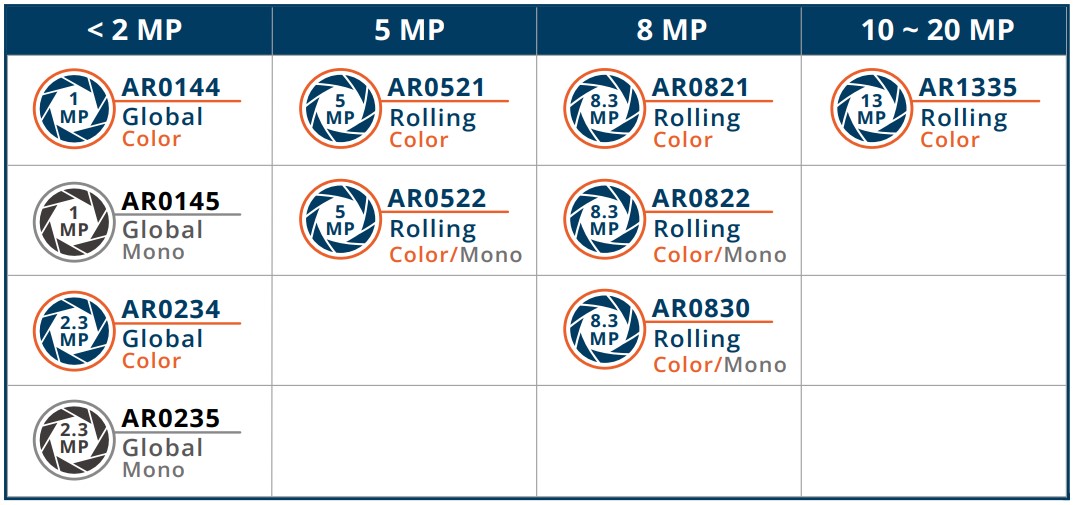
| FPD Link III | VLS-FPD3-AR0144 VLS-FPD3-AR0145 VLS-FPD3-AR0234 VLS-FPD3-AR0235 VLS-FPD3-AR0246 VLS-FPD3-AR0521 VLS-FPD3-AR0522 VLS-FPD3-AR0544 VLS-FPD3-AR0821 VLS-FPD3-AR0822 VLS-FPD3-AR0830 VLS-FPD3-AR1335 VLS-FPD3-AR2020 |
Supported NVIDIA Jetson Developer Kit
Install TN Camera on Jetson Developer Kit
Adaptor for NVIDIA Jetson Orin Nano Development Kit
-
VL-FPD3-8CAM-RPI22 Adaptor for VLS-FPD3 Cameras
Follow the video tutorial below to learn how to connect VLS-FPD3 Cameras and the VL-FPD3-8CAM-RPI22 Adaptor to the Jetson Orin Nano Developer Kit.
Method 1 - Using TechNexion Pre-built Image
We provide pre-built images to install quickly on Jetson Orin Nano Developer Kit.
VLS3-ORIN-EVK + VLS-FPD3 Cameras
Method 2 - Using TechNexion Pre-built modules
Jetson Orin Nano
We recommend following the Getting Started Guide for Jetson Orin Nano Developer Kit. After that, you can follow the below method to install TechNexion Cameras Driver.
- Download pre-built modules.
- JetPack 5.1.1
- JetPack 5.1.2
- JetPack 5.1.3
- JetPack 5.1.4
wget https://download.technexion.com/demo_software/EVK/NVIDIA/OrinNano/pre-built-modules/latest/JP511/tn_camera_modules_jp511.tar.gz
wget https://download.technexion.com/demo_software/EVK/NVIDIA/OrinNano/pre-built-modules/latest/JP512/tn_camera_modules_jp512.tar.gz
wget https://download.technexion.com/demo_software/EVK/NVIDIA/OrinNano/pre-built-modules/latest/JP513/tn_camera_modules_jp513.tar.gz
wget https://download.technexion.com/demo_software/EVK/NVIDIA/OrinNano/pre-built-modules/latest/JP514/tn_camera_modules_jp514.tar.gz
-
uncompress the modules.
tar -xf tn_camera_modules_<JP_Ver>.tar.gz -
Run installation script.
cd tn_camera_modules_<built_time>/
./tn_install.sh -
After you agree to continue the installation, select the VLS-FPD3 module.
$ sh tn_install.sh
****** TechNexion Camera Driver Installation ******
This installation is easy to install TechnNexion Camera Drivers for NVIDIA
Jetson Orin NANO Development Kits. Before start to install camera driver,
You should BACKUP your image to avoid any file you lost while installing process.
Do you want to continue?[Y/n]Y
Continuing with the installation...
Install TN-CAM modules: vizionlink.ko
Install TN-CAM DTB file: vl316-vls
Installed TN-CAM DTB file Done.
Select modules:
    [2]: VLS-FPD3: VLS-FPD3 Series Cameras with VL-FPD3-8CAM-RPI22 Adaptor
Which modules do you select?[default:1]2
You should reboot the device after installation.
Method 3 - Build drivers from source code
Please follow the guide to build camera driver modules.
Bring up Camera by GStreamer
If you succeed in initialing the camera, you can follow the steps to open the camera.
-
Check the supported resolutions:
$ gst-device-monitor-1.0 Video/Source
Device found:

        name  : vi-output, tevs 9-0048
        class : Video/Source
        caps  : video/x-raw, format=(string)UYVY, width=(int)1280, height=(int)800, framerate=(fraction)60/1;
                video/x-raw, format=(string)UYVY, width=(int)1280, height=(int)720, framerate=(fraction)60/1;
                video/x-raw, format=(string)UYVY, width=(int)640, height=(int)480, framerate=(fraction)60/1;
                video/x-raw, format=(string)UYVY, width=(int)1280, height=(int)800, framerate=(fraction)60/1;
                video/x-raw, format=(string)UYVY, width=(int)1280, height=(int)720, framerate=(fraction)60/1;
                video/x-raw, format=(string)UYVY, width=(int)640, height=(int)480, framerate=(fraction)60/1;
                video/x-raw, format=(string)NV16, width=(int)1280, height=(int)800, framerate=(fraction)60/1;
                video/x-raw, format=(string)NV16, width=(int)1280, height=(int)720, framerate=(fraction)60/1;
                video/x-raw, format=(string)NV16, width=(int)640, height=(int)480, framerate=(fraction)60/1;
        properties:
                udev-probed = true
                device.bus_path = platform-tegra-capture-vi
                sysfs.path = /sys/devices/platform/tegra-capture-vi/video4linux/video0
                device.subsystem = video4linux
                device.product.name = "vi-output\,\ tevs\ 9-003e"
                device.capabilities = :capture:
                device.api = v4l2
                device.path = /dev/video0
                v4l2.device.driver = tegra-video
                v4l2.device.card = "vi-output\,\ tevs\ 9-003e"
                v4l2.device.bus_info = platform:tegra-capture-vi:1
                v4l2.device.version = 330344 (0x00050a68)
                v4l2.device.capabilities = 2216689665 (0x84200001)
                v4l2.device.device_caps = 69206017 (0x04200001)
        gst-launch-1.0 v4l2src ! ...

... -
Bring up the camera (/dev/video0) with 1280x720 by Gstreamer pipeline:
DISPLAY=:0 gst-launch-1.0 v4l2src device=/dev/video0 ! \
"video/x-raw, format=(string)UYVY, width=(int)1280, height=(int)720" ! \
nvvidconv ! nv3dsink sync=false
Troubleshooting
-
Cannot Find Cameras
If you cannot bring up the cameras, you can check if the video device does exist.
$ ls /dev/video*  # List all video devices
/dev/video0  /dev/video1
If you cannot see the devices, you should check if the drivers have been probed.
-
Occur Error: Could not get EGL display connection
If you occurred the errors
nvbufsurftransform: Could not get EGL display connectionby rununing the Gstreamer command, you can modify the parameter 'DISPLAY' by the command:# Check and Set environment parameter for 'DISPLAY'
$ export DISPLAY=$(w| tr -s ' '| cut -d ' ' -f 3 | grep :)
# Run Gstreamer pipeline
$ gst-launch-1.0 v4l2src device=/dev/video0 ! \
"video/x-raw, format=(string)UYVY, width=(int)1280, height=(int)720" ! \
nvvidconv ! nv3dsink sync=false