Zephyr Porting Guide for AXON/EDM/PICO-IMX93
Applicable Platforms
This guide applies to the following SOMs.
- AXON-IMX93
- EDM-IMX93
- PICO-IMX93
Introduction
This article documents a practical workflow for building and running Zephyr RTOS on the Cortex-M33 core of the NXP i.MX93 platform. It covers setting up a Zephyr workspace with west, building M33 targets , and booting the M33 firmware either by loading a binary from U-Boot or by using Linux remoteproc to start an ELF on the M33 core.
Part1: Set Up the Environment
Follow these steps on Ubuntu to prepare the Zephyr workspace using the TechNexion fork for i.MX93 platforms.
1.1 Install System Packages
sudo apt update
sudo apt install -y git cmake ninja-build gperf dfu-util device-tree-compiler \
  python3-venv python3-pip xz-utils file make gcc g++
1.2 Clone TechNexion Zephyr Fork
mkdir -p ~/tn-zephyr-ws
cd ~/tn-zephyr-ws
git clone -b tn-v4.3-branch https://github.com/TechNexion/zephyr.git zephyr
1.3 Initialize Python venv and West
python3 -m venv .venv
source .venv/bin/activate
pip install -U pip west
west init -l zephyr
west update
1.4 Install Dependencies and SDK
pip install -r zephyr/scripts/requirements.txt
cd zephyr
west zephyr-export
west sdk install
Part2: Build and Run hello_world example
This section shows how to:
- Build the Zephyr
hello_worldsample for the PICO-IMX93 Cortex-M33 core. - Identify the generated binary and ELF files.
- Boot the M33 core from U-Boot using the generated image.
2.1 Build the hello_world application
Use west build to compile the Zephyr hello_world sample for the PICO-IMX93 M33 target:
west build -p always -b pico_imx93/mimx9352/m33 samples/hello_world
After a successful build, Zephyr places output files under the build/zephyr/ directory and copy binary file to 1st FAT partition:
cp build/zephyr/zephyr.bin /media/username/boot/
2.2 Run hello_world example
Choose to load bin with cortex-m33 support.
In u-boot prompt:
setenv m33image zephyr.bin
run m33boot
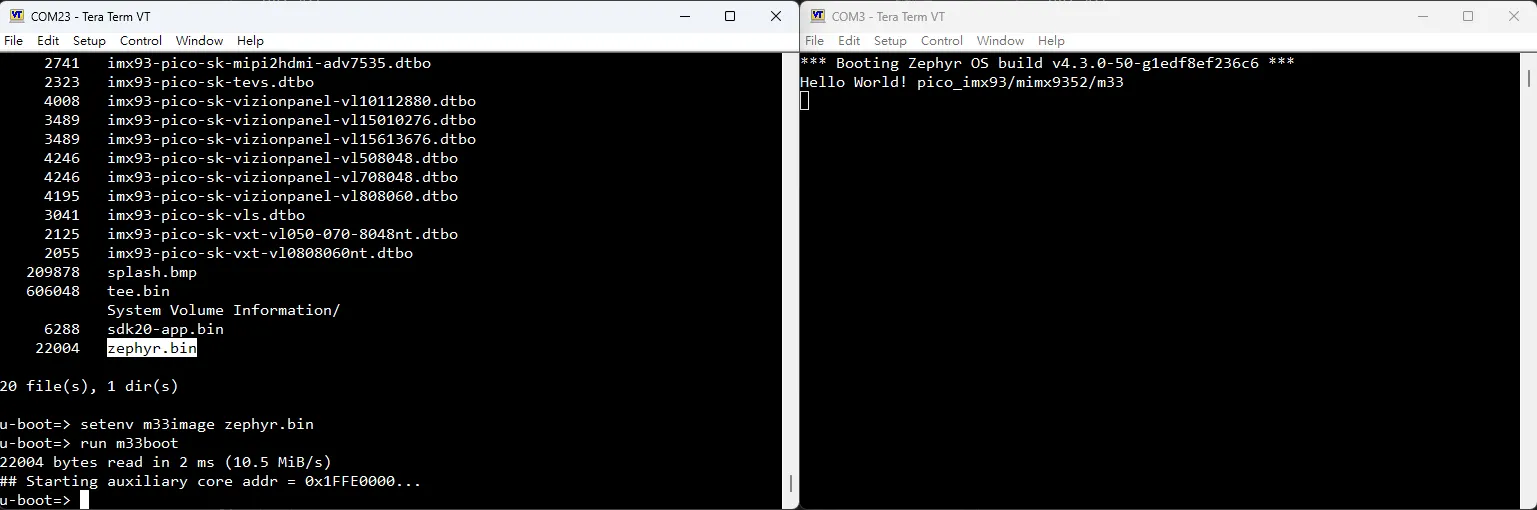
You should see the following output from debug console:
Part3: Build and Run synchronization example
3.1 Build the synchronization application
Use west build to compile the Zephyr synchronization sample for the PICO-IMX93 M33 target:
west build -p always -b pico_imx93/mimx9352/m33 samples/synchronization
After a successful build, Zephyr places output files under the build/zephyr/ directory ; deploy zephyr.elf to /lib/firmware/ for Linux remoteproc loading and place zephyr.bin on the first FAT (BOOT) partition for U-Boot booting:
cp build/zephyr/zephyr.bin /media/username/boot/
cp build/zephyr/zephyr.elf /media/username/root/lib/firmware/
3.2 Run synchronization example
1.Choose to load bin with cortex-m33 support.
In u-boot prompt:
setenv m33image zephyr.bin
run m33boot
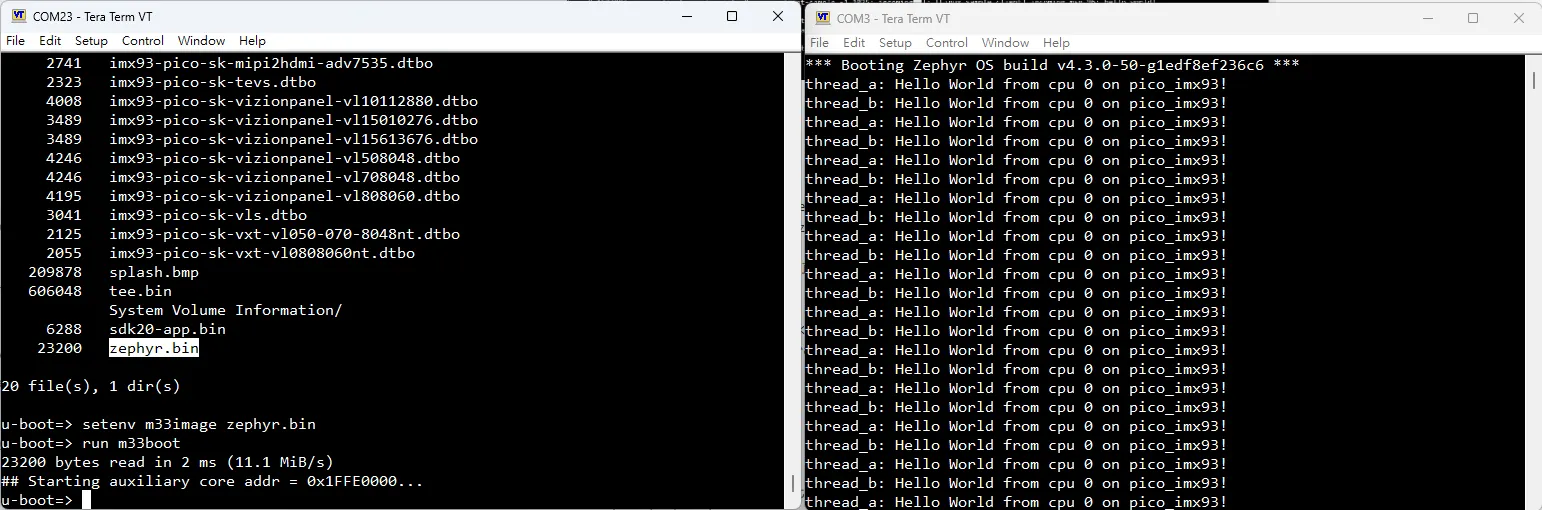
You should see the following output from debug console:
2.Choose to load elf with cortex-m33 support.
In u-boot prompt:
run prepare_mcore
boot
In Yocto prompt:
echo zephyr.elf > /sys/class/remoteproc/remoteproc0/firmware
echo start > /sys/class/remoteproc/remoteproc0/state
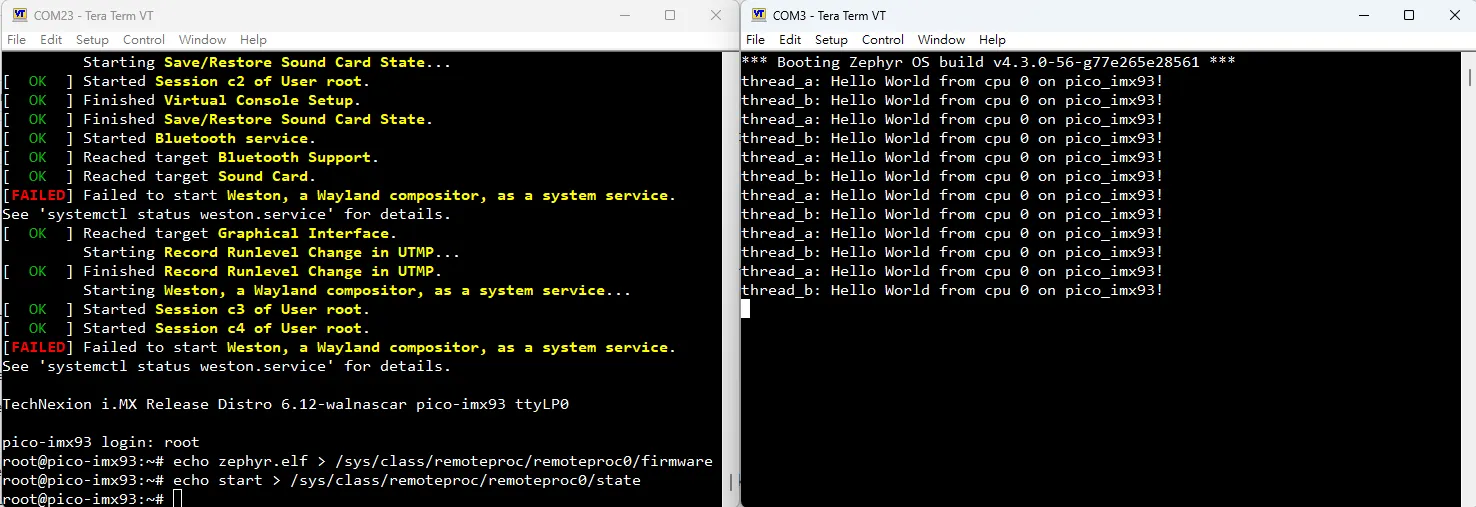
You should see the following output from debug console:
Part4: Build and Run openamp example
4.1 Build the openamp application
Use west build to compile the Zephyr openamp sample for the PICO-IMX93 M33 target:
west build -p always -b pico_imx93/mimx9352/m33 samples/subsys/ipc/openamp_rsc_table
After a successful build, Zephyr places output files under the build/zephyr/ directory ; deploy zephyr.elf to /lib/firmware/ for Linux remoteproc loading and place zephyr.bin on the first FAT (BOOT) partition for U-Boot booting:
cp build/zephyr/zephyr_openamp_rsc_table.bin /media/username/boot/
cp build/zephyr/zephyr_openamp_rsc_table.elf /media/username/root/lib/firmware/
4.2 Run openamp example
1.Choose to load bin with cortex-m33 support.
In u-boot prompt:
setenv m33image zephyr_openamp_rsc_table.bin
run m33boot
In Yocto prompt:
dmesg | grep rpmsg
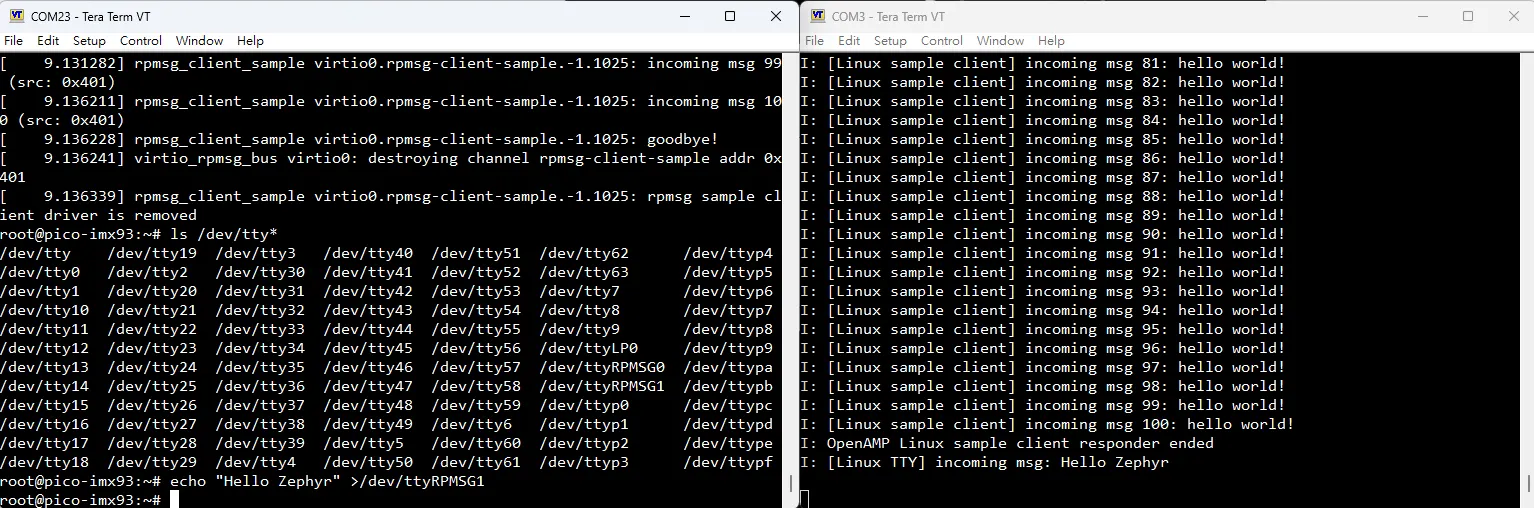
echo "Hello Zephyr" >/dev/ttyRPMSG1
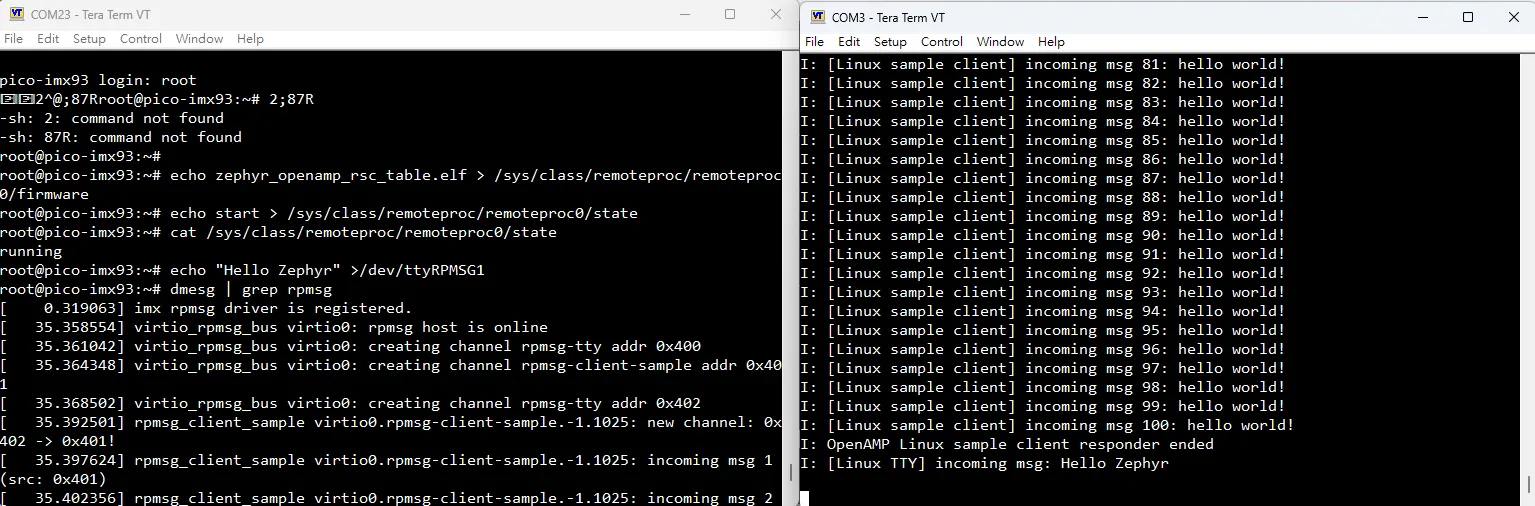
You should see the following output from debug console:
2.Choose to load elf with cortex-m33 support.
In u-boot prompt:
run prepare_mcore
boot
In Yocto prompt:
cat /sys/class/remoteproc/remoteproc0/state
echo zephyr_openamp_rsc_table.elf > /sys/class/remoteproc/remoteproc0/firmware
echo start > /sys/class/remoteproc/remoteproc0/state

dmesg | grep rpmsg
echo "Hello Zephyr" >/dev/ttyRPMSG1
You should see the following output from debug console: